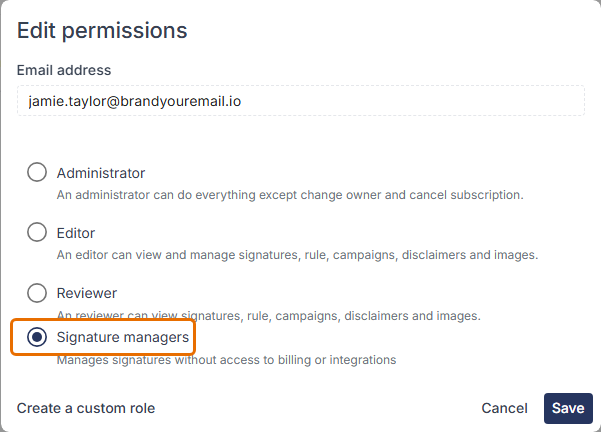
Role-based access control in Signature 365
If you need a role that is different from the default Administrator and Editor roles, you can create a custom role in Signature 365.
The Custom roles feature in Signature 365 allows you to set specific read or manage permissions for all areas of the Signature 365 portal.
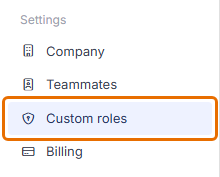
Log on to the Signature 365 portal, and select the Settings menu item, followed by Custom roles.
If no custom roles exist yet, the page shows an empty state:
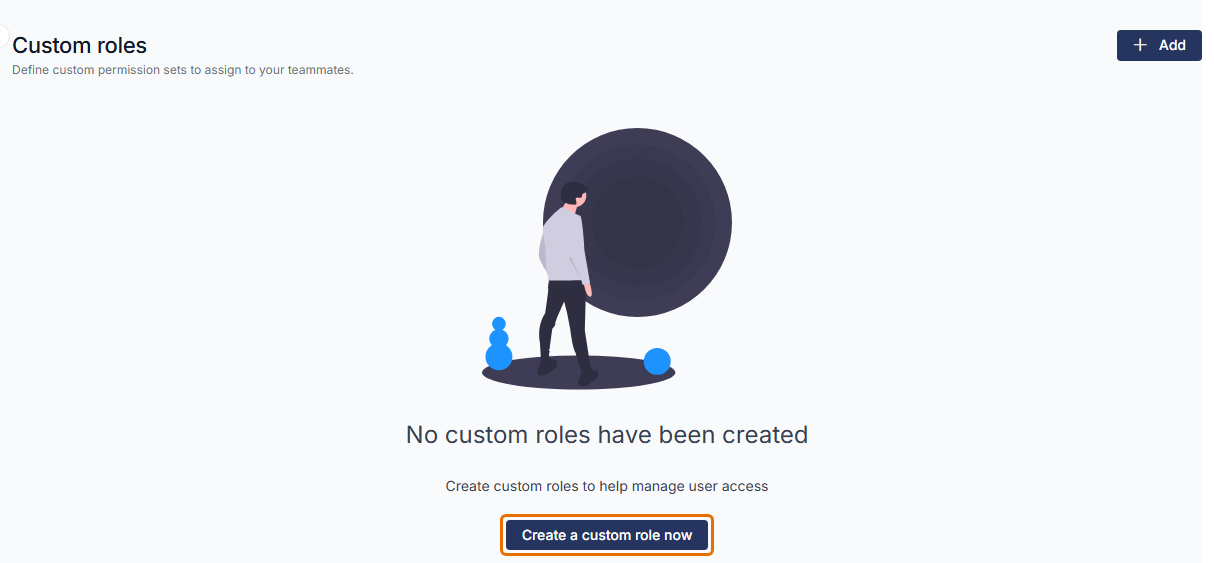
Click the Create a custom role now button to start the process.
This will open the New custom role window
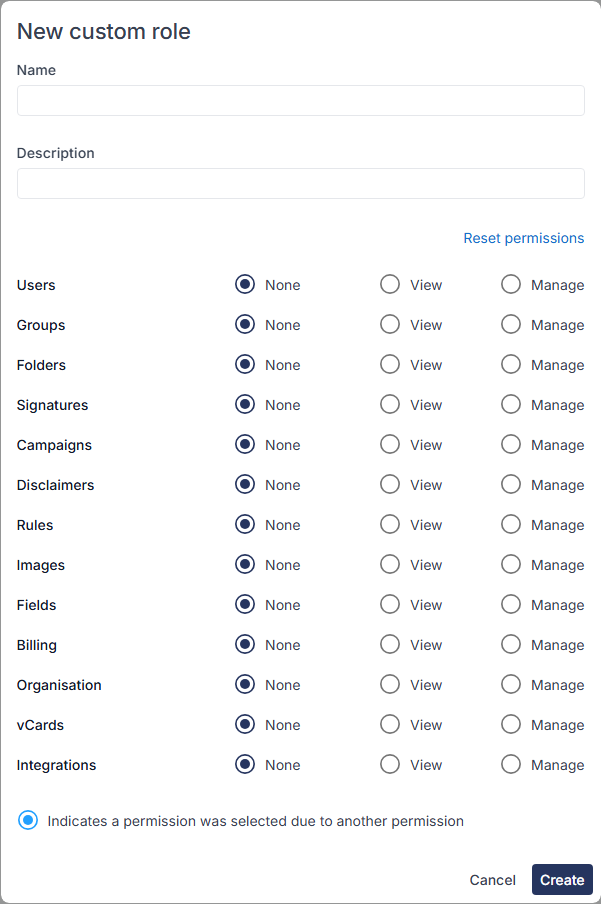
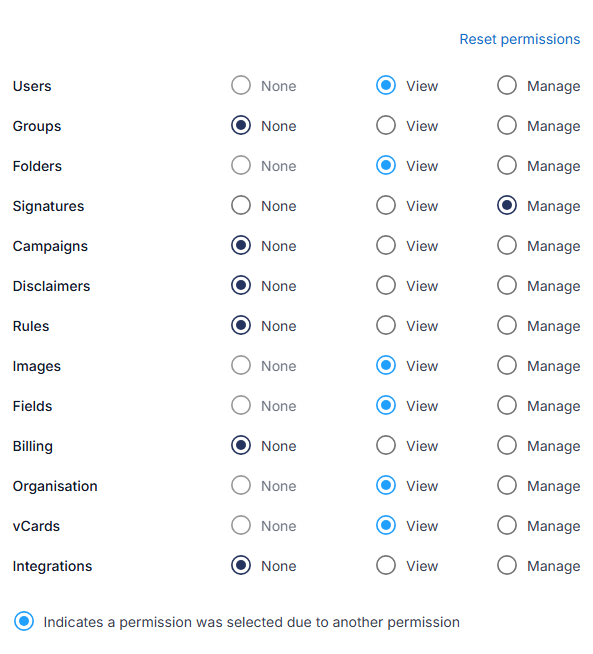
Name the role, and assign the required permissions for the role.
Certain permissions are automatically assigned when required, and these are identified by a blue highlight. In the example below, Manage Signatures requires View access to the Users, Folders, Images, Fields, Organisation and vCards sections.
Click the Create button, and this will create the new role.
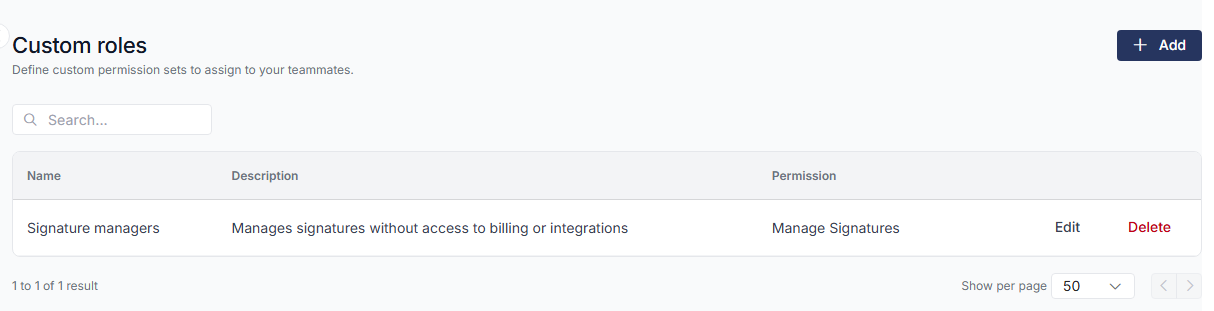
Select the Teammates menu item, then select Edit for the teammate you want to assign the role to. Select the new role and click Save.