
Using folders
The Folders feature in Signature 365 can be used to place your Signature, Campaign and Disclaimer templates into folders, so they are easier to organise and manage.
By default all templates are placed into a single folder; when using a less complex configuration this allows management from a single area.
For customers with multiple locations or many templates, this can introduce challenges with management of data. The folders feature allows you to separate these templates by folder, with the structure mirrored across all template types.
By default, the folder structure component will not be shown - for existing customers with no requirement for this feature, the interface will remain the same.
Creating folders
To add a folder, simply click the New folder button in the folder list on the left of the Signatures, Campaigns or Disclaimers tab. Once you have folders, hover over a folder in the list and click its Create folder icon to add a subfolder inside it:
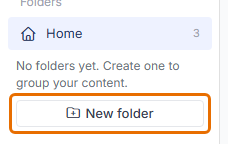
This will open the New folder pop up - type a name for the folder and select Create.
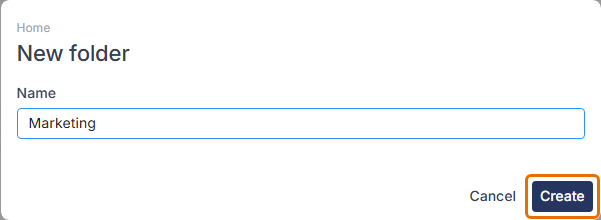
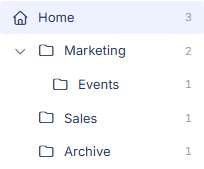
You will now see the folder structure component to the left of the Signatures, Campaigns and Disclaimers window when you enter these tabs. The Home folder always exists and sits as the root folder.
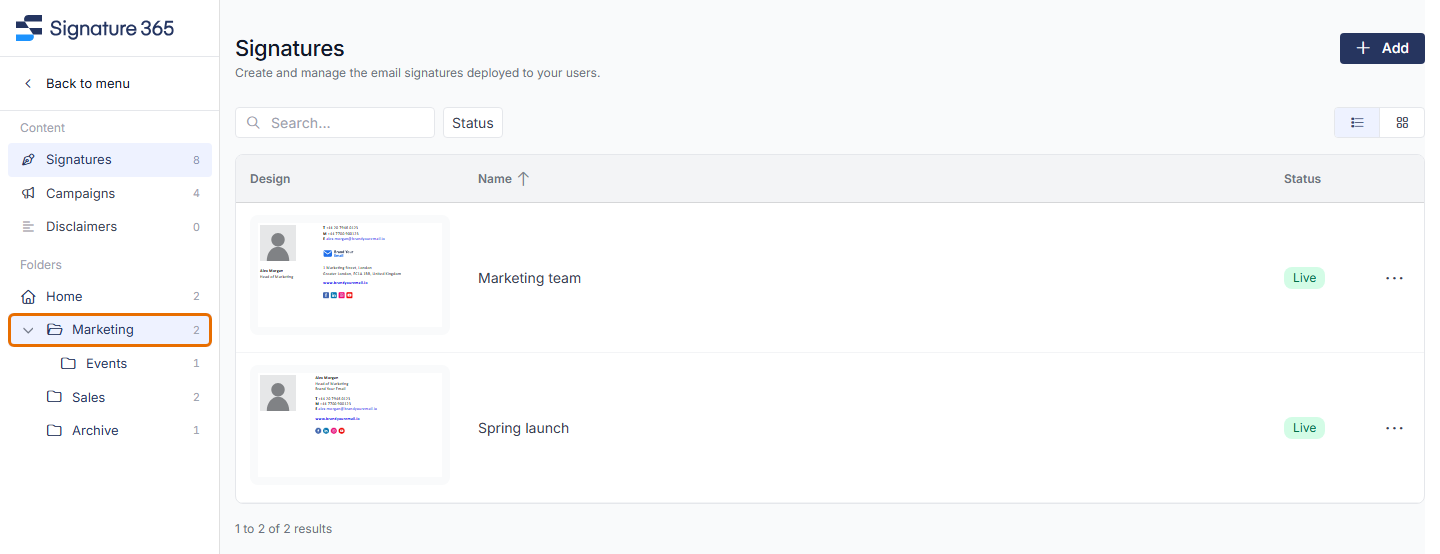
The folder structure details the number of components stored in the folder. In this case the Home folder has 3 signatures within, the "Marketing" folder has 2 (including 1 in its "Events" subfolder), the "Sales" folder has 1, and the "Archive" folder has 1.
Folder actions
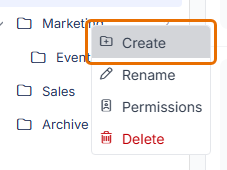
To access folder actions, simply right click on the folder to open a context menu, where you can create subfolders, rename the folder, change its permissions or delete the folder you have selected.
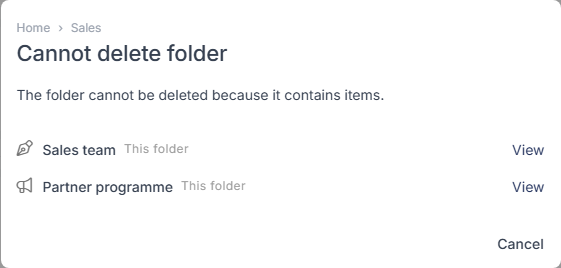
A folder that still contains templates cannot be deleted. Attempting to remove one displays a Cannot delete folder warning listing each item in the folder, with a View link to open it. Move or delete those items first, then try again:
Moving templates
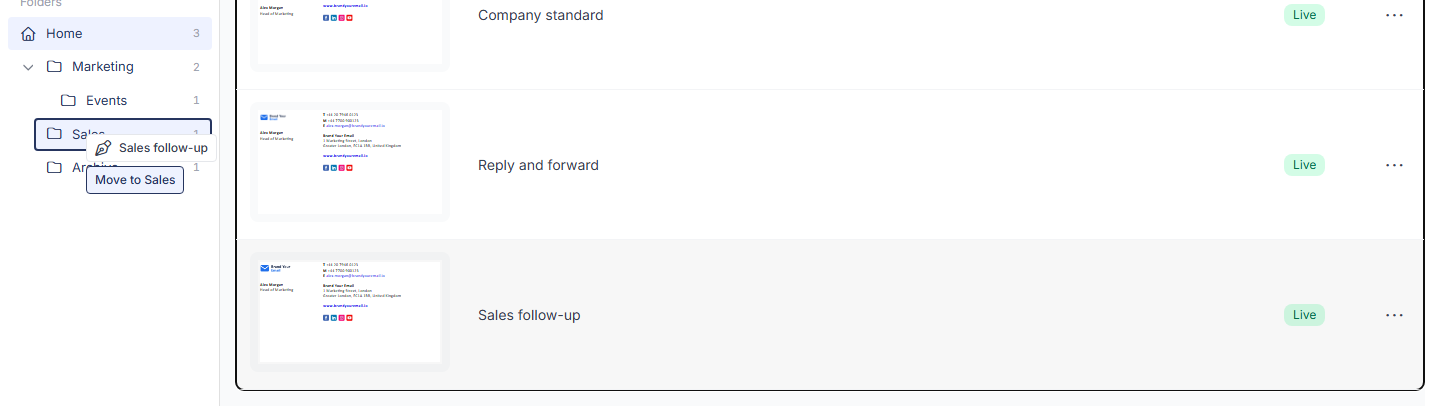
To move an existing template between folders, simply click and drag to the required folder, this will place the template in the required folder:
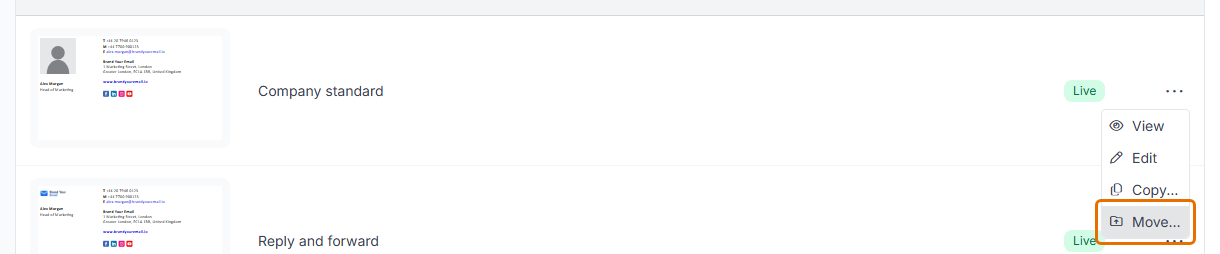
You can also use the Move option when in list mode, by clicking the ... option on a template and selecting Move...
Creating new templates in folders
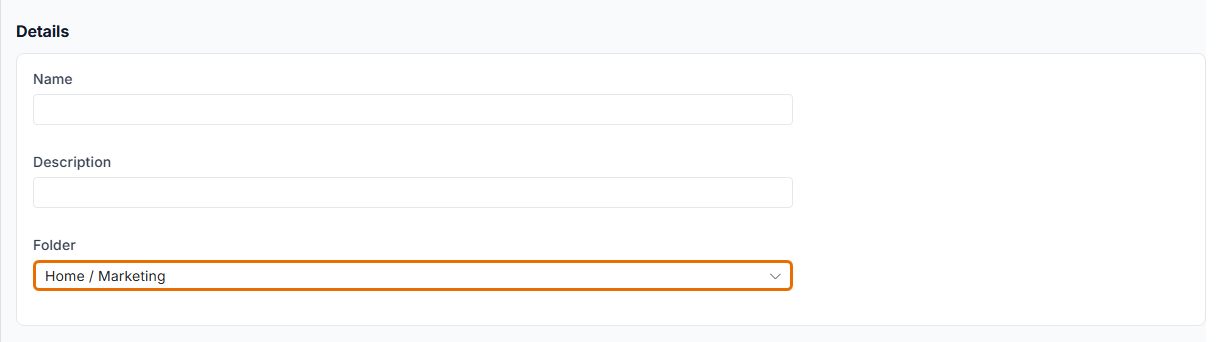
When creating a new template with folders active, you will see an additional selection requirement:
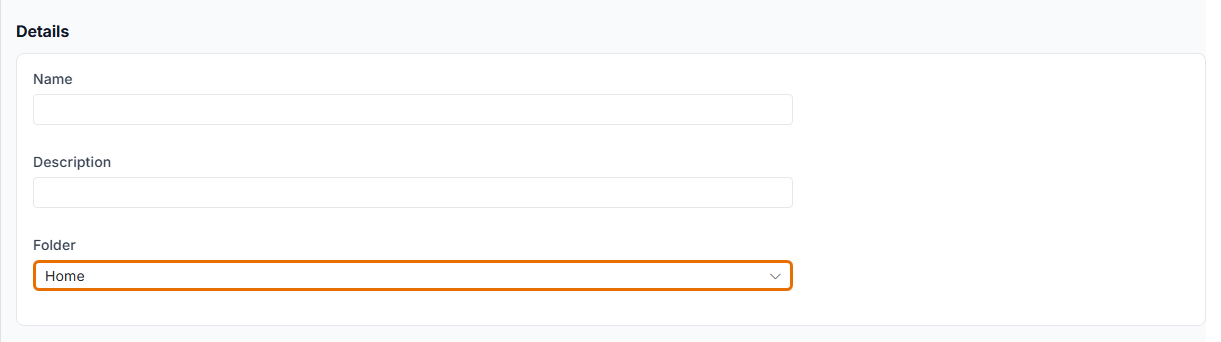
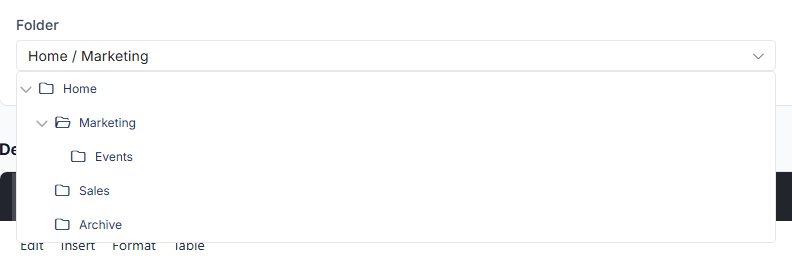
Selecting the drop-down will allow you to pick the folder in which you wish to place the new template:
Creating a new template while in a folder will set the folder to the current location. Here, Add is selected from inside the Marketing folder:
Ordering campaigns and disclaimers
Currently, campaigns and disclaimers are ordered in the same manner regardless of the use of folders. The order of these can be changed by selecting the Reorder button from the campaigns or disclaimers tab:

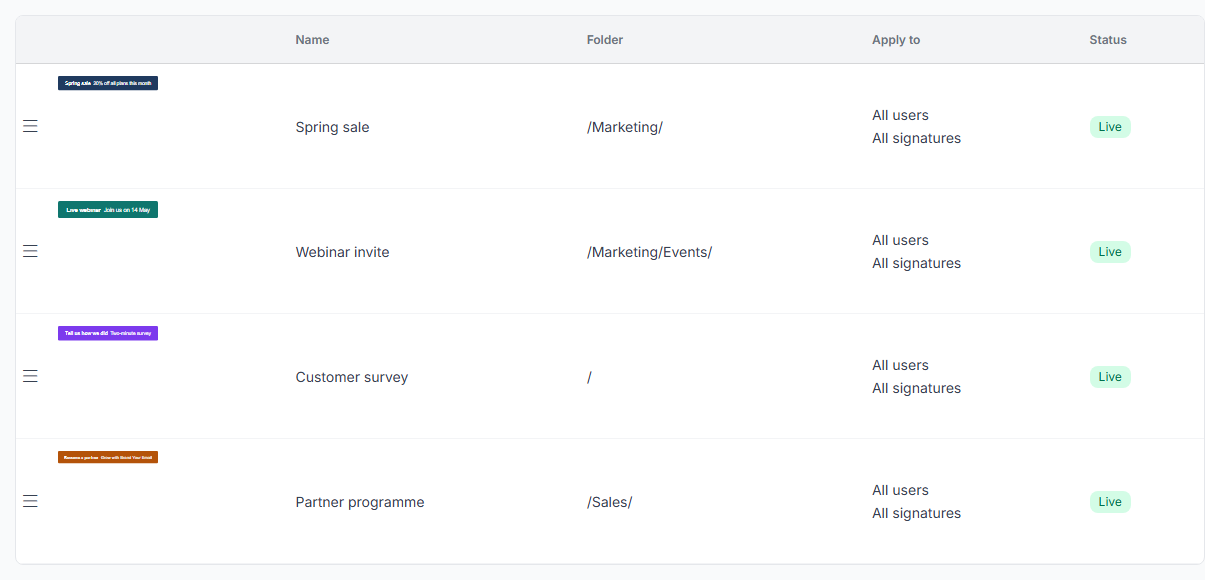
This will present a list of all components to be reordered, these are changed by dragging the handle at the left of each row. If the folder feature is in use, the Folder column will be displayed.
Searching for signatures / campaigns / disclaimers
Templates can be searched from the Search... box in the top left of each section. This function will search the current folder and all subfolders.
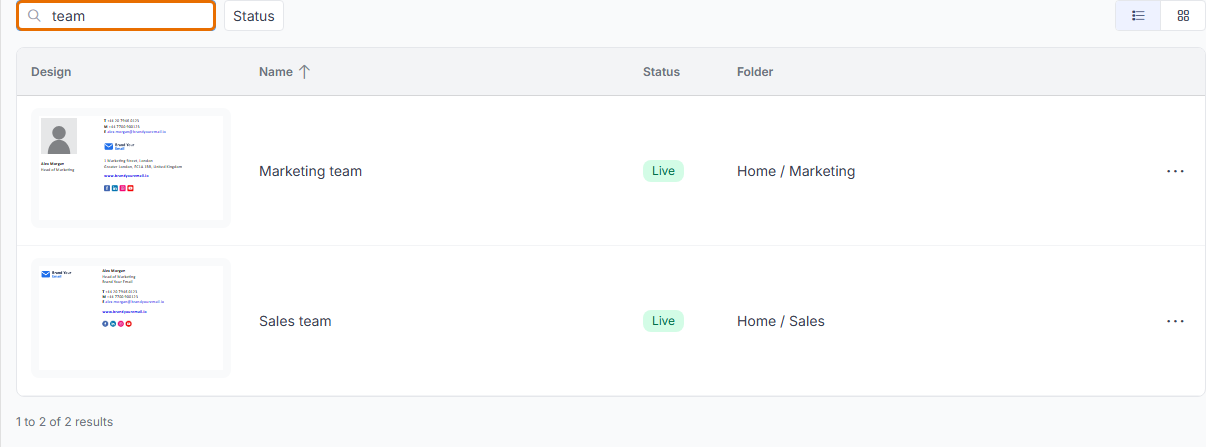
Entering a search term into the search box will search for all templates containing the search term in the name, displaying a thumbnail of the template, and the folder this is located in.