
Updating users & groups imported to Signature 365 from Microsoft 365
Update which Microsoft 365 users and groups Signature 365 imports, including adding, removing, or importing everyone.
If you need to update which Microsoft 365 users and groups are imported into Signature 365, you can update the configuration to add or remove groups, or to import all users and groups.
Excluding Microsoft 365 groups, all other Entra ID, Security and Distribution group types can be used for this step.
Follow the instructions below to update this setting.
- Log on to the Signature 365 Portal
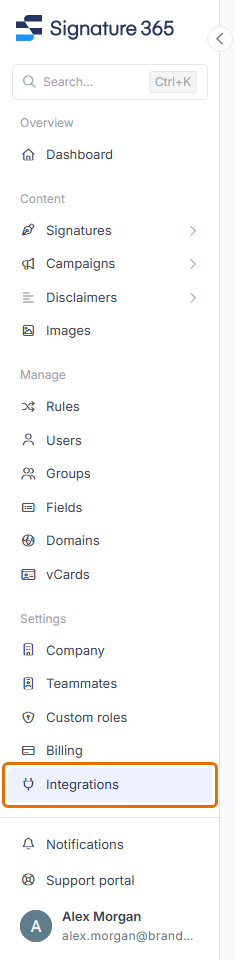
- Under Settings in the sidebar, select the Integrations menu item
- From the Microsoft 365 card, select the View button

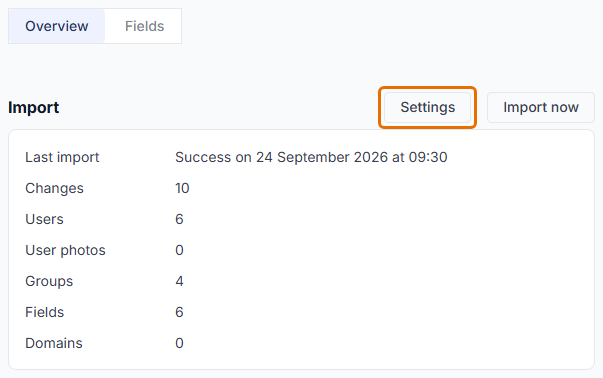
- Select the Settings button in the Import block
- In the Import settings dialog, under Who to import, you can add groups with the Add group option or remove groups by clicking the delete icon next to the group name. Alternatively, you can select the Import all users option to import all users and groups. The User attributes section controls whether custom attributes, extension attributes and user photos are imported
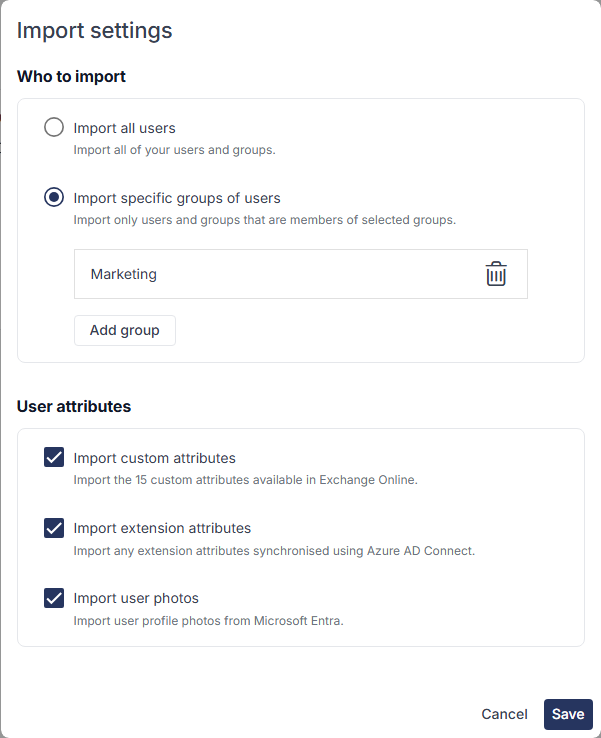
- Click the Save button to save your changes
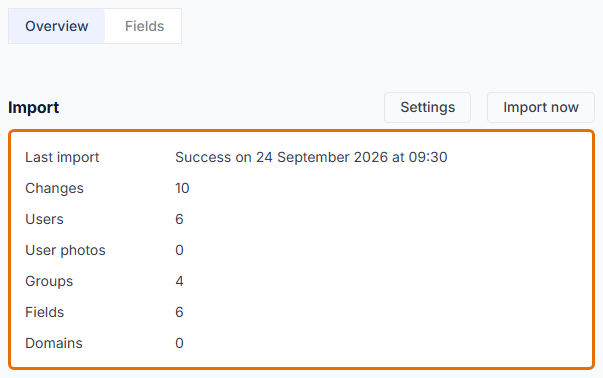
- Your changed users and groups selection will be reflected in the next scheduled import. Alternatively, you can click Import now to trigger an immediate import.
The Changes, Users and Groups items will be updated to reflect the changes.
How to register an additional Signature 365 tenant
Register a second Signature 365 tenant from your existing account to manage multiple organisations.
Using hotlinked vs embedded images in Outlook
Compare hotlinked and embedded images in Outlook, including benefits, drawbacks, and common rendering issues.