
Signing up for a Signature 365 account
Create a Signature 365 trial account using your email address or Microsoft 365 account.
To sign up for a Signature 365 account, follow these steps:
- Go to https://app.signature365.com and select Sign up on the sign-in page:

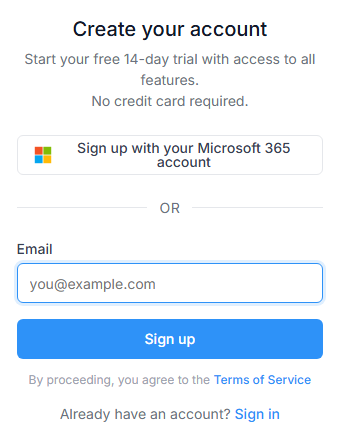
- On the Create your account page, enter your email address and select Sign up. You can also select Sign up with your Microsoft 365 account.
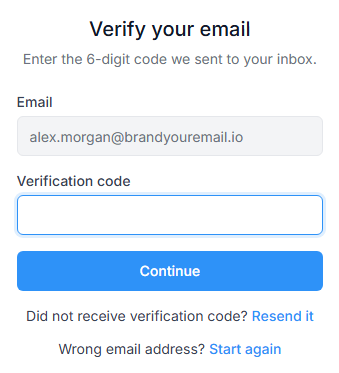
- On the Verify your email page, enter the 6-digit code from the email Signature 365 sends you, or select the link in that email.
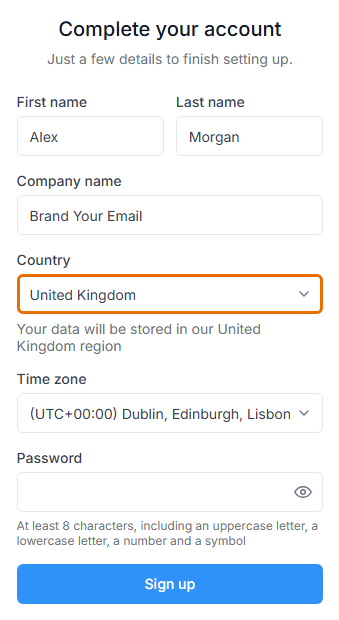
- On the Complete your account page, enter your name, company, country, time zone and password, then select Sign up. If you signed up with your Microsoft 365 account, these details are on the next page instead, and you finish with Sign up with your Microsoft 365 account.WarningThe country you select determines the Signature 365 region where your data is stored. You cannot change the country after your account is created.
Next steps
After completing registration, open your Signature 365 dashboard. The Finish setting up your account card contains the Setup button:
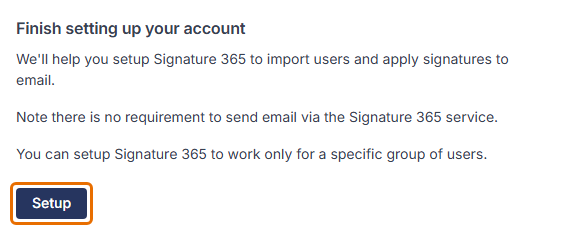
Your account is ready for you to set up Signature 365 for use with your email platform, including importing users and applying email signatures. Select Setup to start the wizard.
You can also select the Signatures menu to create a signature. To upload images, such as logos and social media icons, for use in your signature, select the Images menu. To assign your signature to groups and users, select the Rules menu.
Note your account has been setup with a 14-day trial subscription. You can create a new subscription at any time selecting the Billing menu.