Using two-factor authentication with a Signature 365 admin account
Scenario
You wish to enable two-factor authentication on your administrator or editor accounts for Signature 365.
End users must enable this themselves. You cannot currently enable this centrally.
Solution
2FA in Signature 365 can be enabled in 2 ways; Using SSO with your Microsoft 365 account if you have MFA enabled, or by using 2FA within Signature 365
Microsoft 365 SSO
Follow Enabling single sign-on (SSO) for Signature 365 management accounts to enable this.
2FA within Signature 365
Logon to the Signature 365 portal
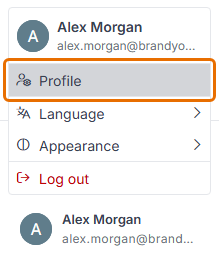
Select the user dropdown from the top right of the page, then select Profile.
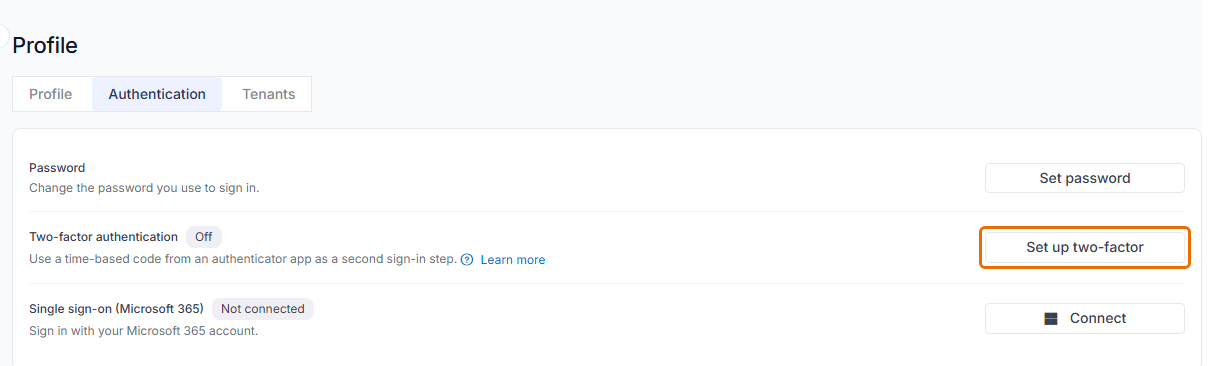
Select the Authentication tab, then click Set up two-factor next to Two-factor authentication.
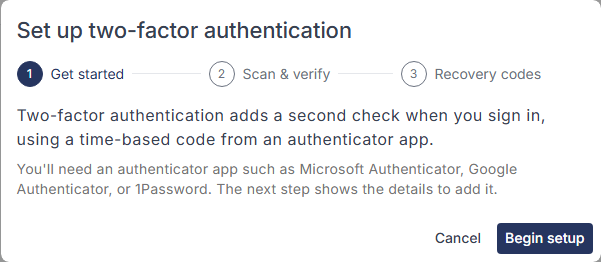
The setup wizard has three steps. In the first step, read the introduction and click Begin setup. You need an authenticator app such as Microsoft Authenticator or Google Authenticator.
In the second step, scan the QR code with your authenticator app, or enter the setup key shown.

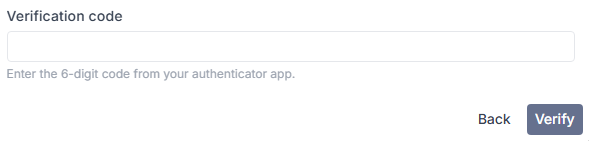
Enter the 6-digit code shown in your authenticator app in the Verification code field, then click Verify.
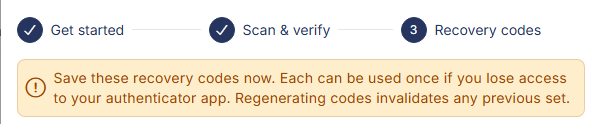
In the third step, your recovery codes will be displayed. Keep them safe. Recovery codes cannot be regenerated for a lost two-factor device.
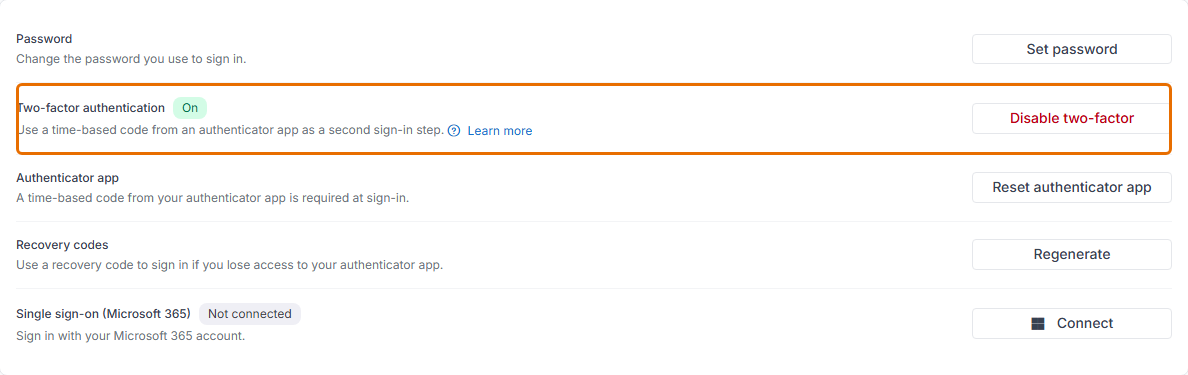
On the Authentication tab, check that Two-factor authentication is set to On. You can disable 2FA from here with Disable two-factor if required.
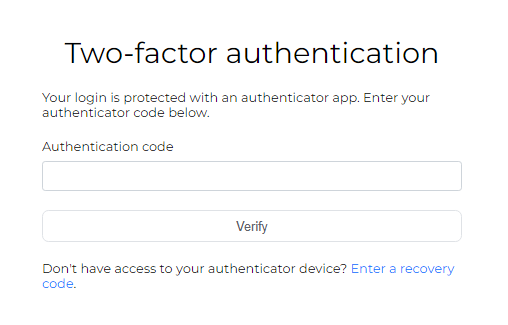
Log out and back in to Signature 365. You will be prompted to enter your two-factor authentication code after logging in with your password.